Guide
Flame Proxy Connector: Route Your Whole PC Through Proxies
Flame Proxy Connector routes any Windows app through proxies with profiles, split tunneling, kill switch, and on-demand IP rotation. A VPN built on proxies.
Proxies have always had a gap: they work beautifully inside code, and awkwardly everywhere else. If your scraper can take a proxy URL, you are set. If you need to route a desktop application — a browser, a game client, a legacy tool, something with no proxy settings at all — you are configuring system-wide settings, fighting with extensions, or giving up.
Flame Proxy Connector closes that gap. It is a Windows desktop application that routes traffic from any program on your machine through proxies, with the control surface you would expect from a VPN client: a connect button, a kill switch, split tunneling, saved profiles, and auto-connect on startup. The difference is what sits behind it. Instead of a handful of VPN servers on datacenter IPs, you get proxies — residential IPs, city-level targeting, and rotation on demand.
You can download it at flameproxies.com/tools/flame-proxy-connector.
What It Actually Does
The application sits between your operating system and the network. Traffic from the applications you select gets transparently redirected through the proxy you have configured, without those applications knowing anything about it. A program with no proxy support at all works exactly as if it did.
This is the same model as tools like Proxifier, with two meaningful differences: the proxy layer is built in rather than something you assemble separately, and the connection controls are designed around rotation rather than around a single static tunnel.
The Main Screen
The interface is deliberately close to a VPN client, because that mental model is the right one.
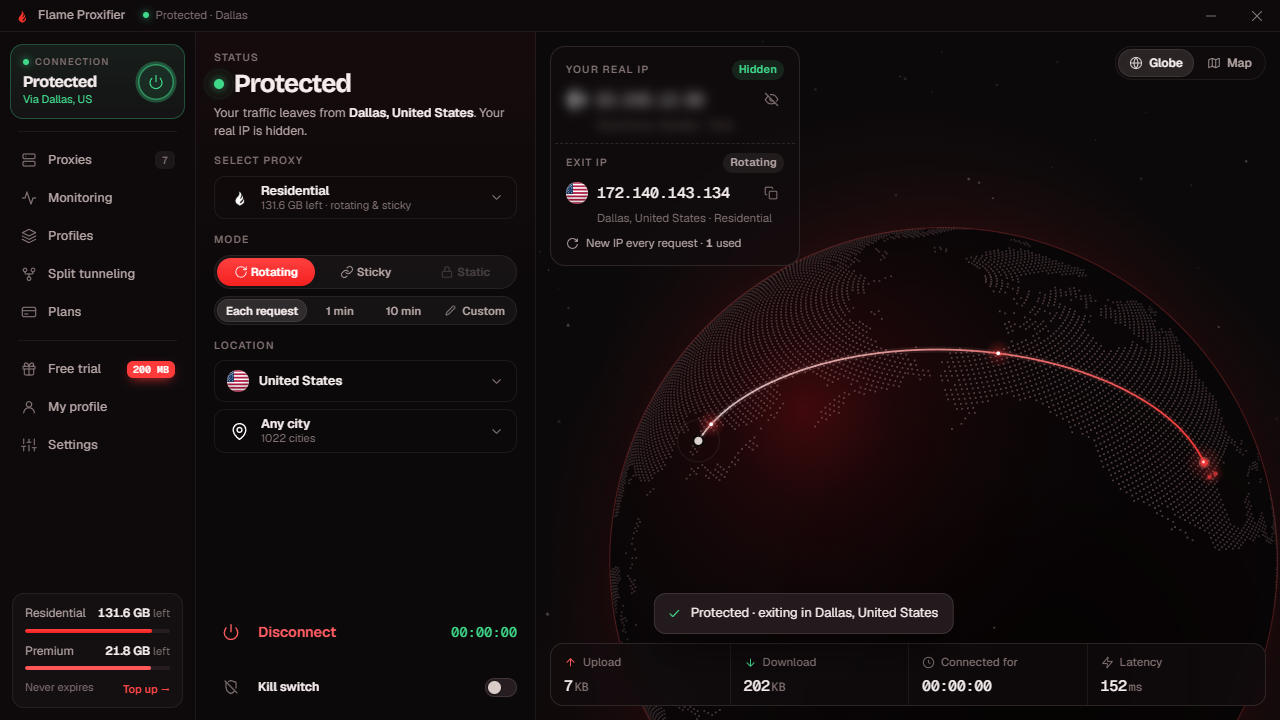
Connection status shows whether you are protected and where your traffic is exiting — country and city. Alongside it, two IP fields: your real IP, masked by default, and the exit IP your traffic is actually presenting. The exit IP is copyable with one click, which matters more than it sounds when you are verifying a setup or filing a support ticket.
Proxy selection picks which of your configured proxies or plans the connection uses, showing remaining bandwidth inline so you are not guessing.
Mode is the part that distinguishes this from a VPN:
- Rotating — a new IP per request, or on a timer
- Sticky — hold the same IP for a set duration
- Static — a fixed IP that does not change
With rotating selected, you choose the interval: each request, one minute, ten minutes, or a custom value. Changing it takes effect immediately, so you can shift from per-request rotation to a ten-minute hold without reconnecting.
Location sets country and city. City coverage is extensive — over a thousand cities available — and "any city" is there when country-level is all you need.
Live stats across the bottom show upload, download, connection duration, and current latency. The latency readout is genuinely useful: it tells you immediately whether a chosen exit is viable for whatever you are doing, rather than discovering it through sluggish behavior.
There is also a globe and map view showing the route from your location to the exit point. Cosmetic, but it makes "where am I actually coming from" legible at a glance.
Profiles
Profiles save complete configurations — proxy, mode, rotation interval, location, and which applications are routed — under a name you choose.
This is the feature that changes day-to-day use. Rather than reconfiguring for each task, you build a profile once and switch between them:
- A profile pinned to a specific city with sticky sessions, for work that needs a consistent identity
- A profile on per-request rotation for high-volume browsing
- A profile targeting a different country for checking localized pricing or content
- A profile routing only one application, leaving everything else direct
Switching profiles is a click, and the change applies without restarting anything you have open.
Split Tunneling
Split tunneling decides which applications go through the proxy and which connect directly. This matters more on a desktop than people expect.
Routing everything through a residential proxy means your operating system updates, cloud sync, video calls, and background telemetry all consume proxy bandwidth — which you are paying for per gigabyte, and which adds latency to things that do not benefit from it. Worse, some services behave badly when their IP changes unexpectedly mid-session.
With split tunneling you route the browser or tool that needs a different IP, and let everything else take the normal path. Bandwidth goes where it is useful, and the applications that want a stable connection keep one.
Kill Switch
The kill switch blocks traffic if the proxy connection drops, rather than letting it silently fall back to your real IP.
Without one, a brief connection interruption means your actual address leaks to whatever you were connected to — and you usually find out later, if at all. For account work, verification tasks, or anything where IP consistency is the point, a silent fallback is worse than a visible failure. The kill switch makes the failure visible.
Auto-Connect on Launch
The application can start with Windows and connect automatically using your chosen profile. For anyone who works through a proxy by default, this removes the step where you forget to connect and send the first hour of traffic from your real IP.
Works With Any Proxies
The connector is not locked to FlameProxies. Add proxies from any provider — HTTP, HTTPS, or SOCKS5, with username/password authentication — and the routing, profiles, split tunneling, and kill switch all work normally. If you have existing proxies and want a better way to route desktop applications through them, that is a complete use case on its own.
What Changes With a FlameProxies Account
Signing in to a FlameProxies account unlocks the parts that need provider-side support:
Automatic proxy sync. Your plans appear in the application without manual entry, with live remaining bandwidth per plan shown in the interface.
Full location targeting. Country and city selection across 180+ countries and over a thousand cities, selectable from the UI rather than hand-encoded into credential strings.
Native rotation control. Rotation mode and interval are set directly, because the gateway supports session parameters the application can drive. With third-party proxies you are limited to whatever that provider's endpoint already does.
Advanced targeting. The newer targeting dimensions — operating system, ASN, and region groupings — are available through the account. More on these below.
Bandwidth visibility. Remaining balance per plan, visible in the client, with top-up available in place. Plan balances do not expire.
Free trial. New accounts include trial bandwidth, so the application is usable end-to-end before paying for anything.
The New Targeting Dimensions
Three targeting options were added recently, and they are worth understanding because they are not standard across the market.
Operating system targeting. Select IPs associated with a particular OS — Windows, macOS, Android, iOS. This matters when the thing you are testing or verifying behaves differently by platform. Mobile-specific ad inventory, app-install campaigns, and OS-gated content all deliver differently, and matching the IP's device profile to the client you are presenting keeps the session coherent.
ASN targeting. Select IPs from a specific autonomous system — a particular ISP or carrier network. Two uses. First, precision: if you need to see what a customer on a specific carrier sees, you can. Second, and more practically for scaled work, control over distribution. Many targets aggregate reputation at the network level, so being able to steer toward or away from particular ASNs gives you a lever that per-IP rotation alone does not.
Region targeting. Select by region group rather than enumerating countries — tier-1 markets, EU, LATAM, and similar groupings. This is a convenience that becomes a real time-saver at scale. "Give me EU traffic" as a single parameter, rather than maintaining a country list and rotating through it yourself. For broad coverage work where the specific country matters less than the economic or regulatory region, it collapses a lot of configuration.
Where It Fits — and Where It Does Not
Good fits:
- Routing desktop applications with no proxy support
- Browser-based research across markets, without extension juggling
- Manual verification work — checking localized pricing, content, or ad delivery by hand
- Account access from a consistent, geographically appropriate IP
- Testing how your own product behaves from other countries
- Anyone who wants proxy infrastructure with VPN-style ergonomics
Not the right tool for:
- Programmatic scraping at volume. If your code can take a proxy URL, use the gateway directly — you get per-request IP control, thousands of concurrent sessions, and parameters your application sets per request. A desktop client routes one machine; a gateway routes your whole operation. Using the connector for high-concurrency collection means funneling parallel work through a single machine's tunnel, which is the exact pattern you want to avoid.
- Non-Windows machines, currently.
The distinction is the same one that separates a VPN from a proxy gateway generally: the connector is excellent for your machine, and the gateway is what you build operations on. Most people who use both end up with the connector for manual and interactive work and the gateway for everything automated.
Getting Started
- Download from flameproxies.com/tools/flame-proxy-connector and install on Windows.
- Either sign in to sync a FlameProxies account, or add your existing proxies manually.
- Pick a proxy, choose rotating, sticky, or static, and set the interval if rotating.
- Set your target country and city.
- Configure split tunneling for the applications you want routed.
- Enable the kill switch, and auto-connect if you want it on at startup.
- Connect, and confirm the exit IP shown matches what you expect.
That last step is worth making a habit. The exit IP and location are displayed in the client specifically so you can confirm the configuration took effect before you rely on it — and you can cross-check against flameproxies.com/whatsmyip from a routed browser if you want independent confirmation.